

How Do You Add Captions to Canva Videos?
Did you know you can use Canvas built-in auto-caption tool to generate and edit video captions? Here’s a step-by-step tutorial on how to get captions quickly.
How do you Generate Canva Video Captions?
In just a few clicks, you can create captions for Canva videos without needing to sit down and transcribe the whole thing. Here’s how.
- Open your video in Canva.
- Place it on your Canvas.
- Click on Text from the left side panel.
- Select dynamic text and then select “Captions”.
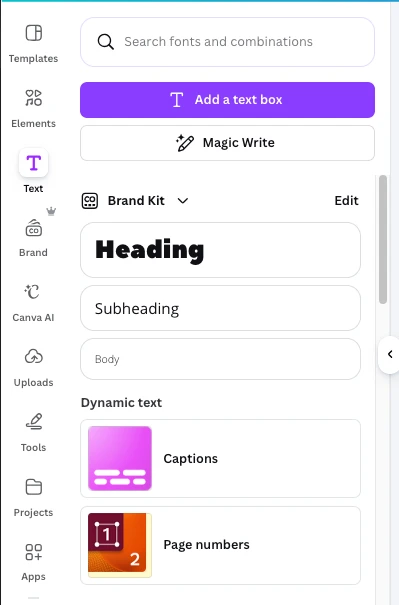
- Select a style from the given options.
- Choose the clip you want to caption.
- Select “Generate Captions” and watch the magic happen.
Once you do this, Canva will transcribe the audio of the video automatically and show the subtitles right there on the screen.
How do you Edit Canva Video Captions?
You may find that the tool got a word or two wrong. Or maybe the timing is off. Here’s how to edit the captions after you generate them.
- Select the text box on the video/in the canvas.
- Choose the “Captions” button.
- On the left, manually type in any corrections to the captions.
- If you want to change fonts and colors, use the top toolbar.
- If you want to add backgrounds, select “Effects” to choose style options.
Why do you Need Captions Anyway?
In order for your content to be easy to engage with, shareable, understandable, and compliant with WCAG guidelines, you need video captions. Captions and transcripts for video are important not just for folks who cannot hear very well, but for anyone who would find them helpful for any reason.
Dive deeper into captions, transcripts, and how to create great captions here.
Need a hand with making your content more accessible? We’re right here to help.